
Following are the steps to create a cube:
Click an existing domain which has access to source tables and the pipeline tables, which are required for the Cube design. These are the Fact and Dimension tables. Alternatively, create a new domain, and add the required source tables to it. The pipelines, cubes and workflows available in the selected domain, is displayed in the Domain page as shown below:
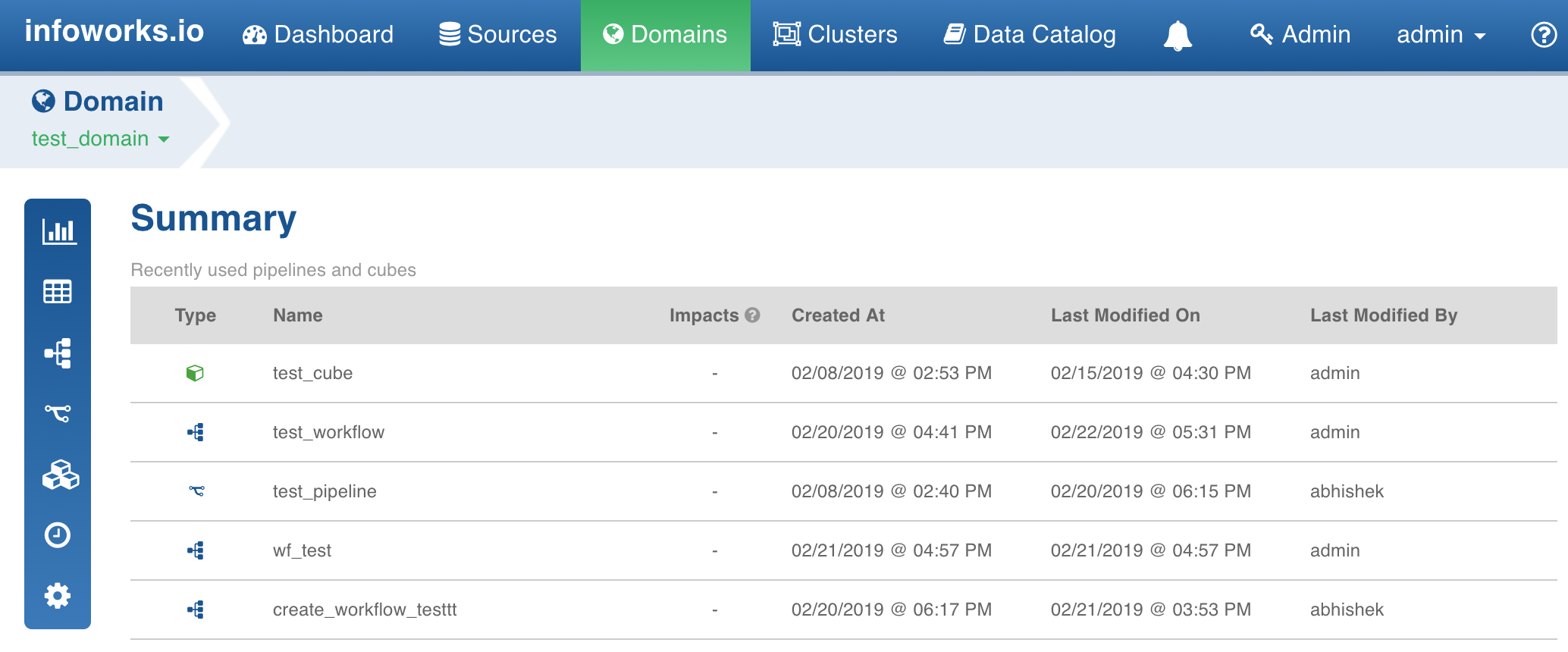
Click the Cube icon. The Cubes page is displayed with a list of existing cubes.
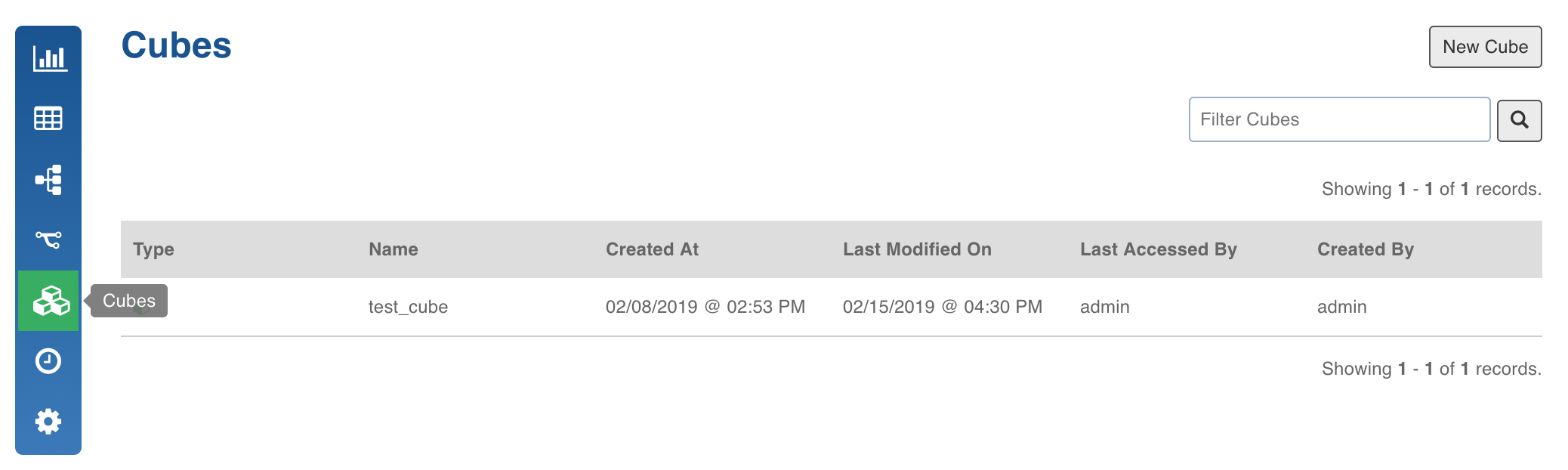
Click New Cube. The following page is displayed.
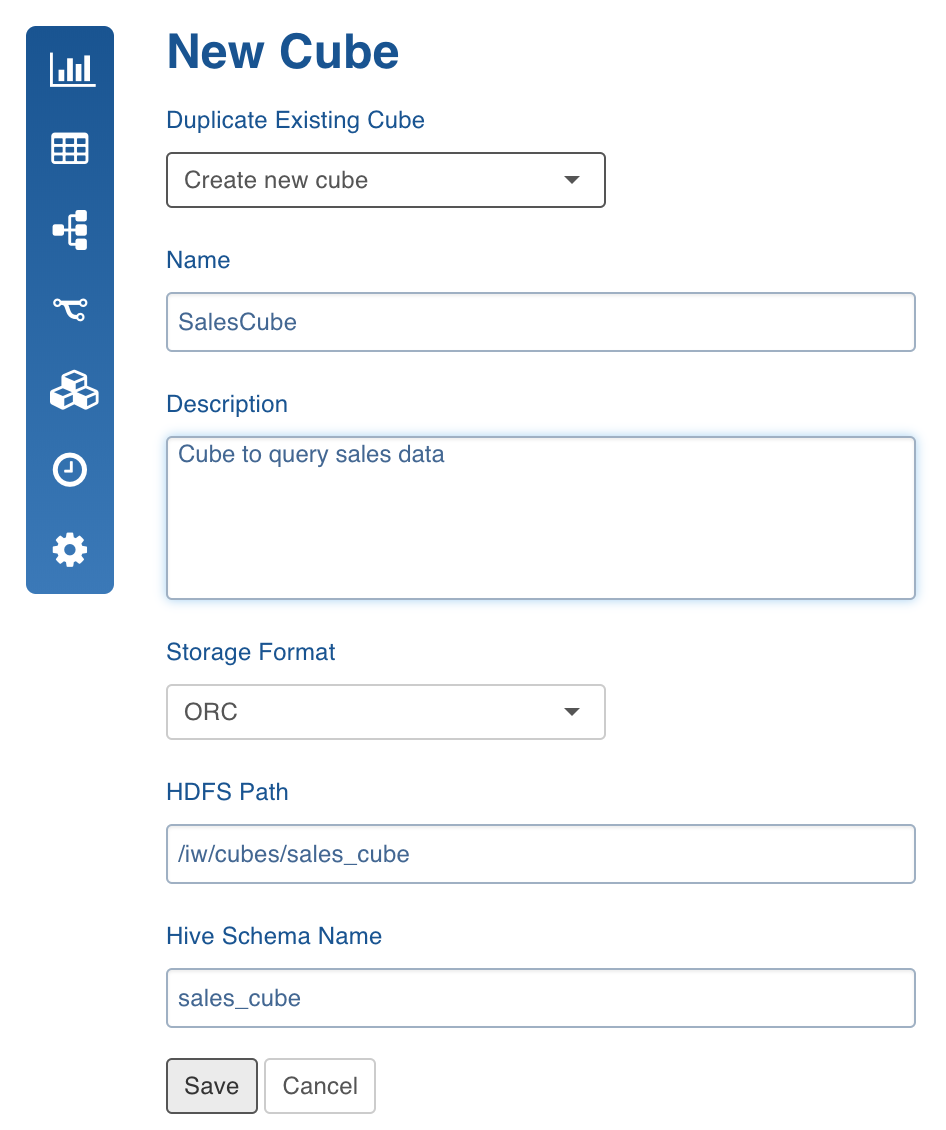
New Cube Field Description
Field | Description |
|---|---|
Duplicate Existing Cube | Drop-down. Name of the required existing cube that you want to duplicate. If you want to create a new cube, select the Create New Cube option, that appears in the drop-down menu. |
Name | Enter the cube name. |
Description | Enter description, if required. |
Storage Format | Select the required format in which the cube tables must be stored (ORC or Parquet). |
HDFS Path | The star schema for the cube model will be saved on HDFS. |
Hive Schema Name | Enter the schema name where the tables will be stored. |
Enter these details, and then click Save. The list of cubes created in the domain will be displayed.