
Prerequisites
Following are the prerequisites to install HDInsight cluster with ESP:
Install and configure Azure Active Directory.
Create a group for Cluster Administration in Azure Active Directory.
Create a Cluster Admin User. The user does not require special rights or groups.
Set up different groups for the following roles in Azure Active Directory for Infoworks Authentication: System Admin, Database Admin, Data Analyst, Data Modeller.
Install and configure Azure Active Directory Domain Services (AADDS) from the Azure Portal.
Enable Secure LDAP for AADDS in Azure Portal. The default is false.
Create an SSL certificate. The certificate can be self-signed but a certificate from a trusted issuer is recommended. The certificate must be a wildcard for the AADDS domain. For example, *.myaadds.org. For details on the set up, see Configure secure LDAP (LDAPS) for an Azure AD Domain Services managed domain.
Go to security and ensure that only inbound access to specific IP address is allowed, and not to the internet. Else, LDAP will be exposed to the public internet.
To set up HDInsight cluster in a different resource group, ensure a VNet is created in a new resource group and peered with Azure AD VNet and vice-versa.
Set DNS provided by this VNet as the IPs of DNS services provided by AADDS, or a DNS forwarder that can resolve DNS queries to the AADDS domain.
Create a managed identity. Assign the HDInsight Domain Service Contributor role to the managed identity within the AADDS Azure resource.
For more details on ESP, see Configure a HDInsight cluster with Enterprise Security Package by using Azure Active Directory Domain Services.
HDInsight HBase Cluster Installation
Create an HDInsight HBase Cluster version 3.6. with ESP option selected. Ensure that an associated VNet and Subnet is available. Note the following when creating the cluster:
Cluster Name
Cluster Ambari Login User Name
Cluster Ambari Login Password
LDAP Admin User Password (Admin user when creating HDInsight cluster)
Following are the steps to setup the HBase Clusters (choose Custom):
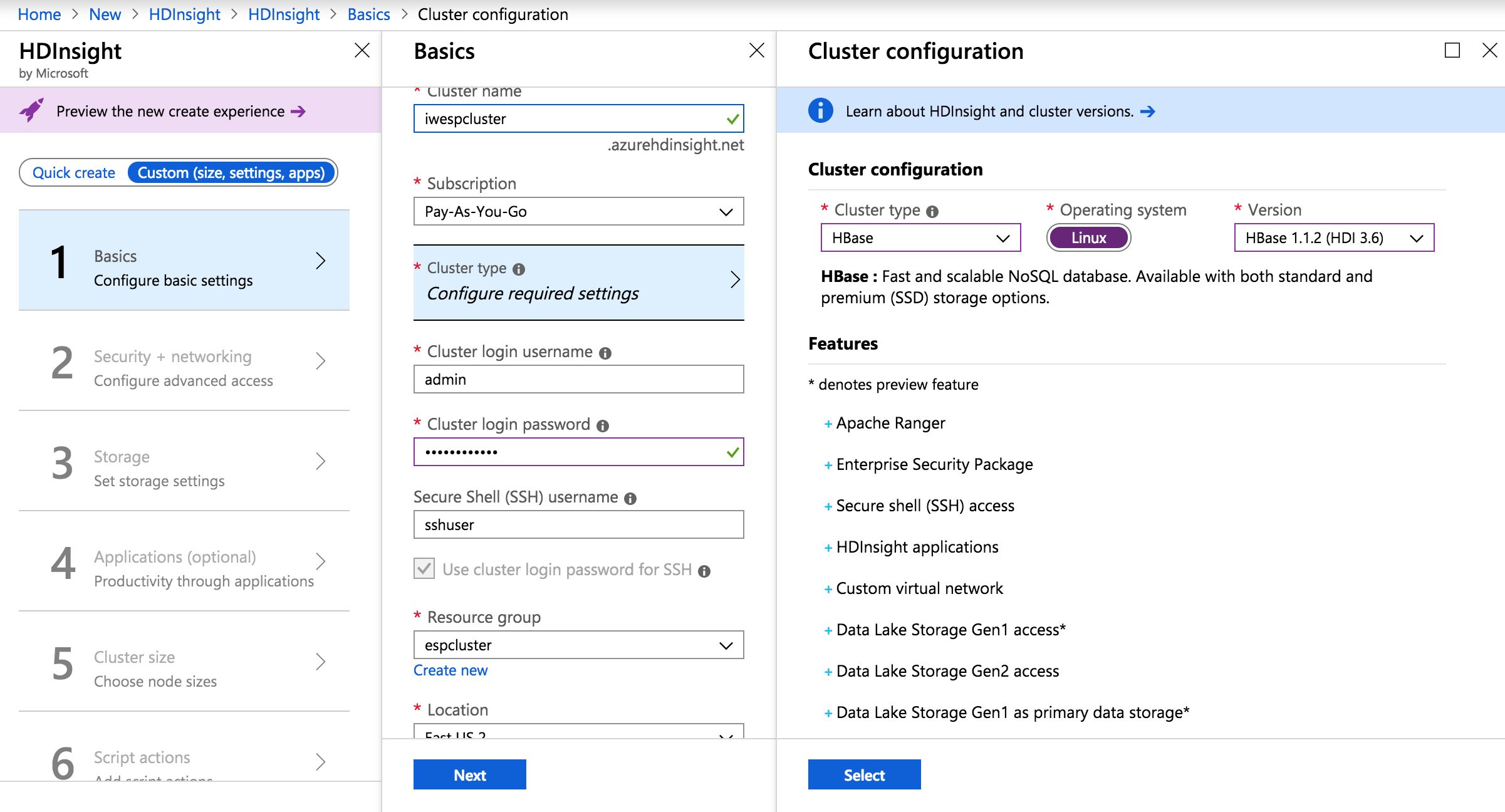
Basics
Enter the following details:
Field | Description |
|---|---|
Cluster Name | Name of the cluster |
Subscription | Subscription ID |
Cluster type | <p>HBase</p><p><span>O/S: Linux</span></p> Version: HBase 1.1.2 (HDI 3.6) |
Cluster login username | <font color="#444444"><span class="">Ambari login username</span></font> |
Cluster login password | Ambari login password |
Secure Shell (SSH) username | SSH username |
Use cluster login password for SSH (Checkbox) | Check this box if the SSH <br>and cluster login password <br>must be the same |
Resource group | Select the existing resource group |
Location | Resource group location |
Click Select and click Next.
Security and Networking
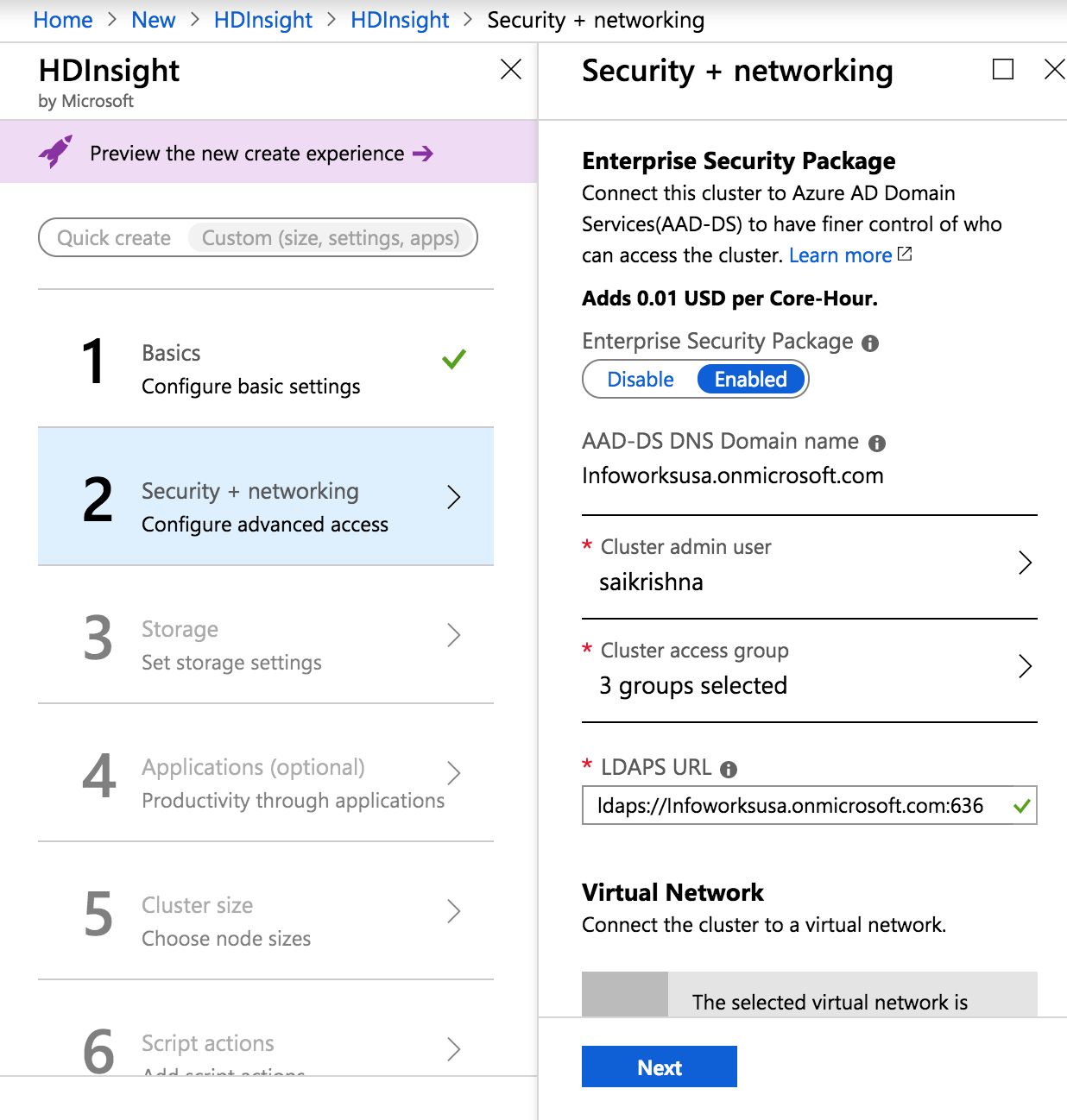
Enter the following details:
<b>Field</b> | Description |
|---|---|
<b>Enterprise Security Package</b><br> | <br> |
Enterprise Security Package | Select the <i>Enabled</i> option. |
AADDS DNS Domain Name | Domain name |
Cluster Admin User | LDAP admin user <br>for HDInsight cluster |
Cluster access group | Groups to access the HDInsight cluster |
LDAPS URL | Retain the default url, ldaps://*.com:636<br> |
<b>Virtual Network</b> | |
Virtual network | The VNet created as mentioned <br>in the prerequisite |
Subnet | Subnet associated with the VNet |
<b>Identity</b> | |
Subscription | Subscription ID |
User-assigned managed identity | Managed identity created as <br>mentioned in the prerequisite |
Click Next.
Storage
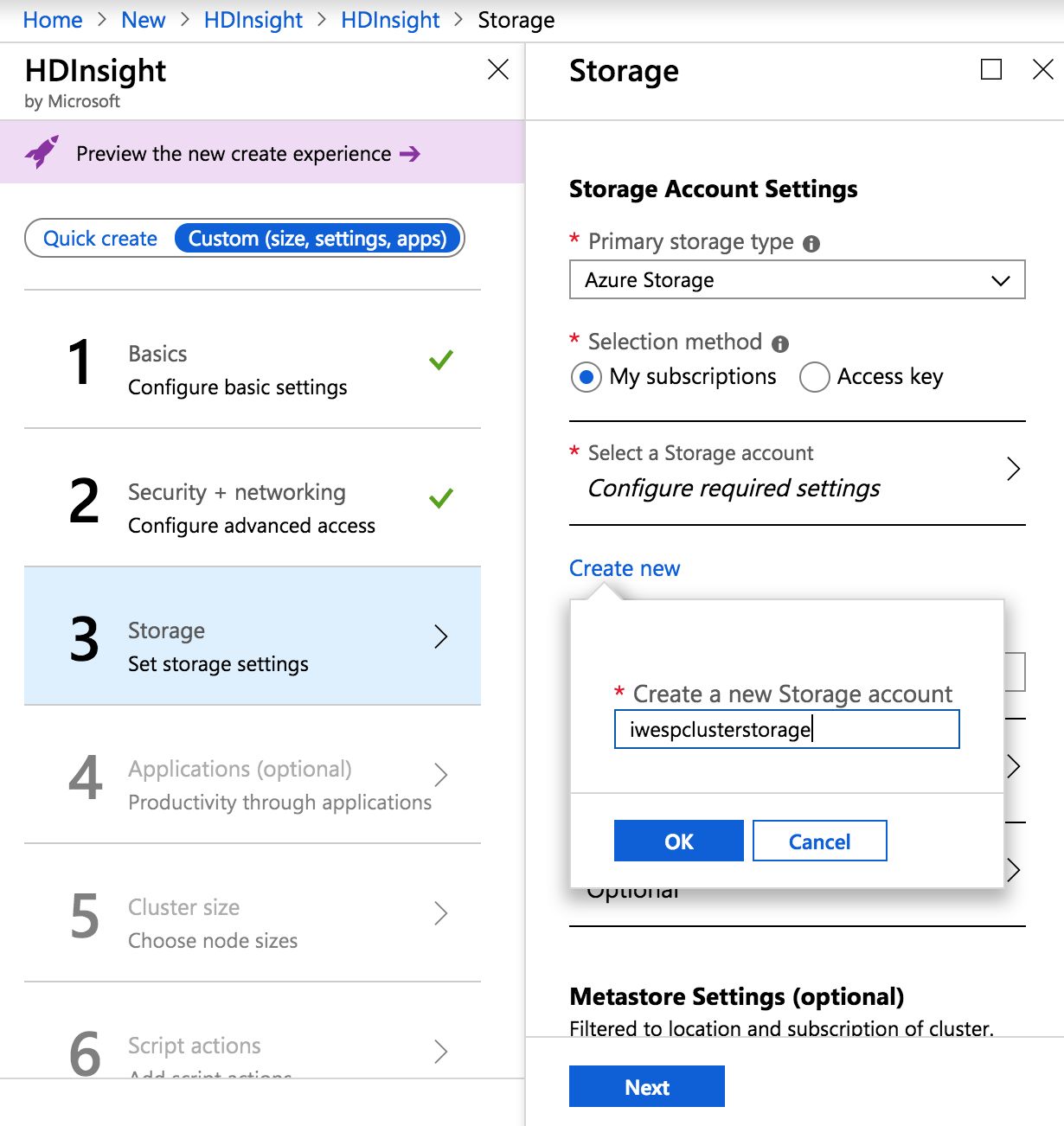
Enter the following details:
Field | Description |
|---|---|
<b>Storage Account Settings</b> | |
Primary storage type | Select <i>Azure Storage</i> |
Storage account (new) | Create a new storage account |
Container | (auto-populated) |
Additional storage account | Leave the field blank |
Data Lake Storage Gen1 access | Leave the field blank |
<b>Metastore Settings</b> | |
Select a SQL database for Hive | Leave the field blank |
Select a SQL database for Oozie | Leave the field blank |
Select a SQL database for Ranger | Leave the field blank |
Click Next.
Applications[Optional]
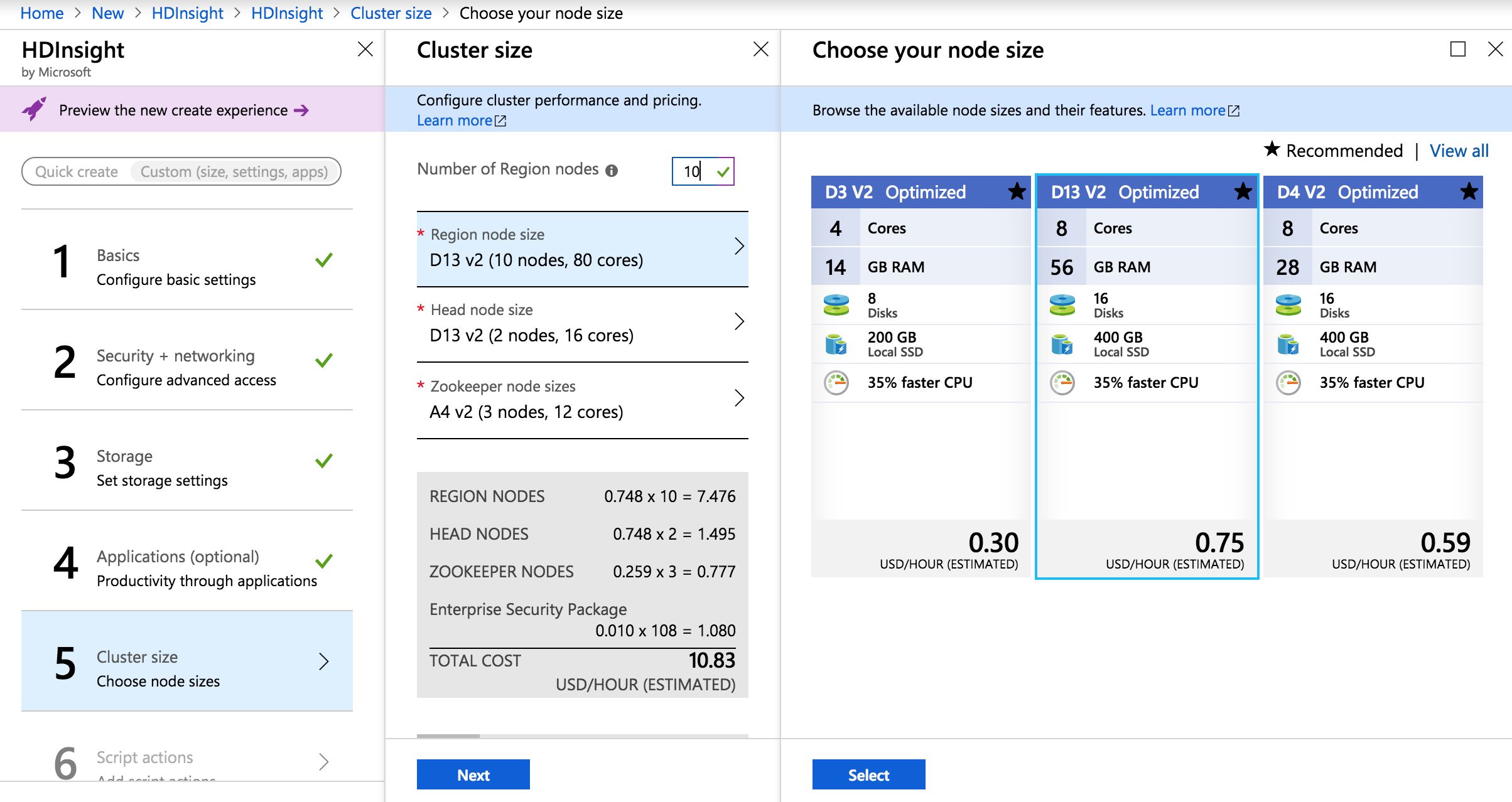
Cluster Size
Enter the following details:
Description | Value |
|---|---|
<b>Cluster Size</b> | <br> |
Number of Region nodes | 10 |
Region node size (10 nodes) | D13 v2 |
Head node size (2 nodes) | D13 v2 |
Zookeeper node sizes | A4 v2 |
Click Select and click Next.
Script Actions[Optional]
Summary
Verify that the information is correct and create the clusters accordingly.
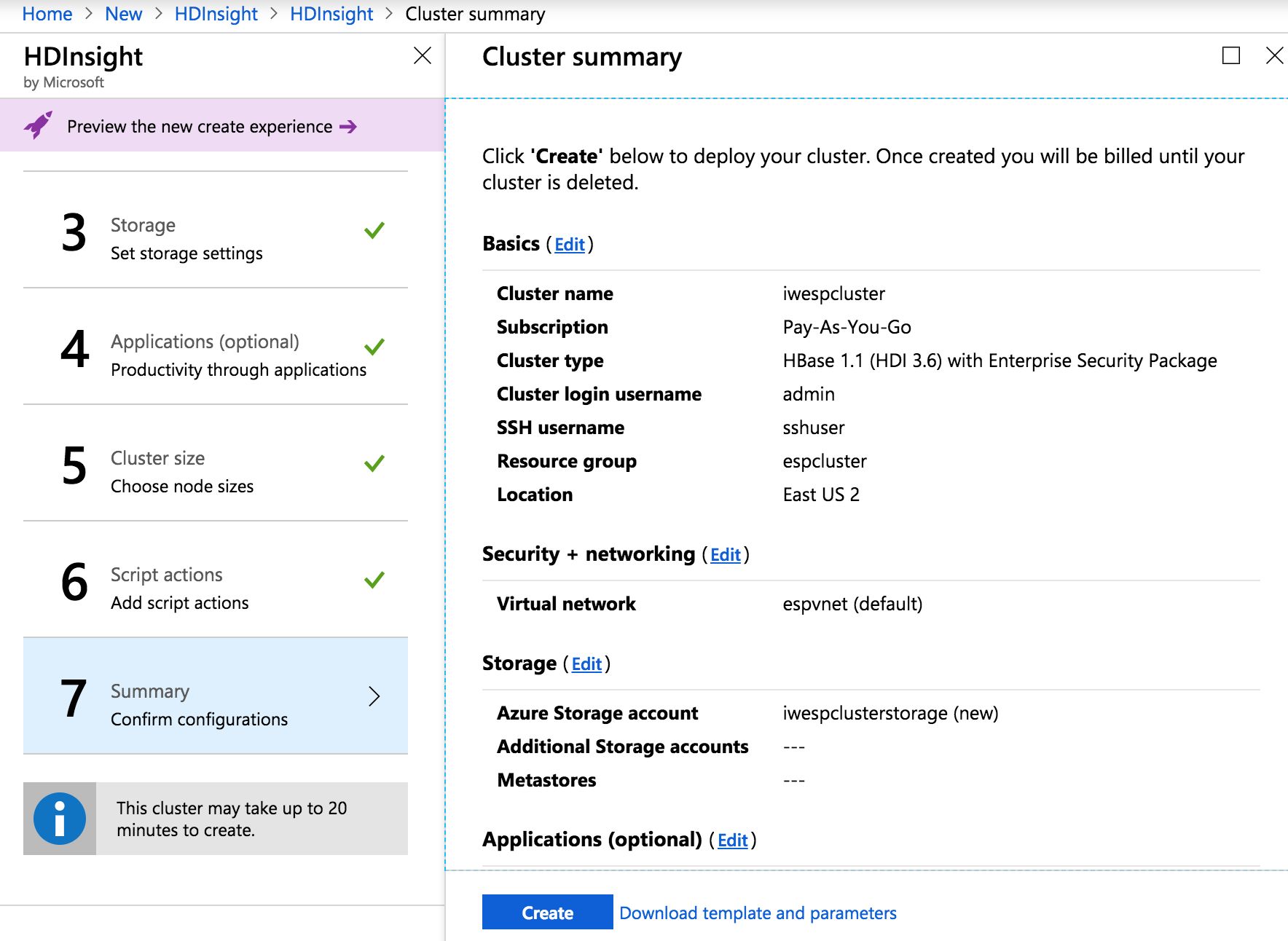
Click Create.