
You can add custom UDF logic which can be used as a function in any transformation nodes.
Creating Custom UDF
Extend the UDF API with a class which has a evaluate() method. For example, SampleCustomUDF.java in IW_HOME/examples/pipeline-extensions in the Infoworks edge node. You can modify this example java class with the specific transformation requirements.
Create a jar for the above project.
Upload the jar (and any external dependencies such as Pheonix jars) to a folder in the Infoworks edge node. For example, /home//customudf/. Jars related to Hadoop, spark etc, will already be available on the Infoworks DF classpath and hence, not required to be placed in this folder.
Registering Custom UDF
In the Infoworks ADE, navigate to Admin > External Scripts > Pipeline Extensions.
Click Add An Extension.
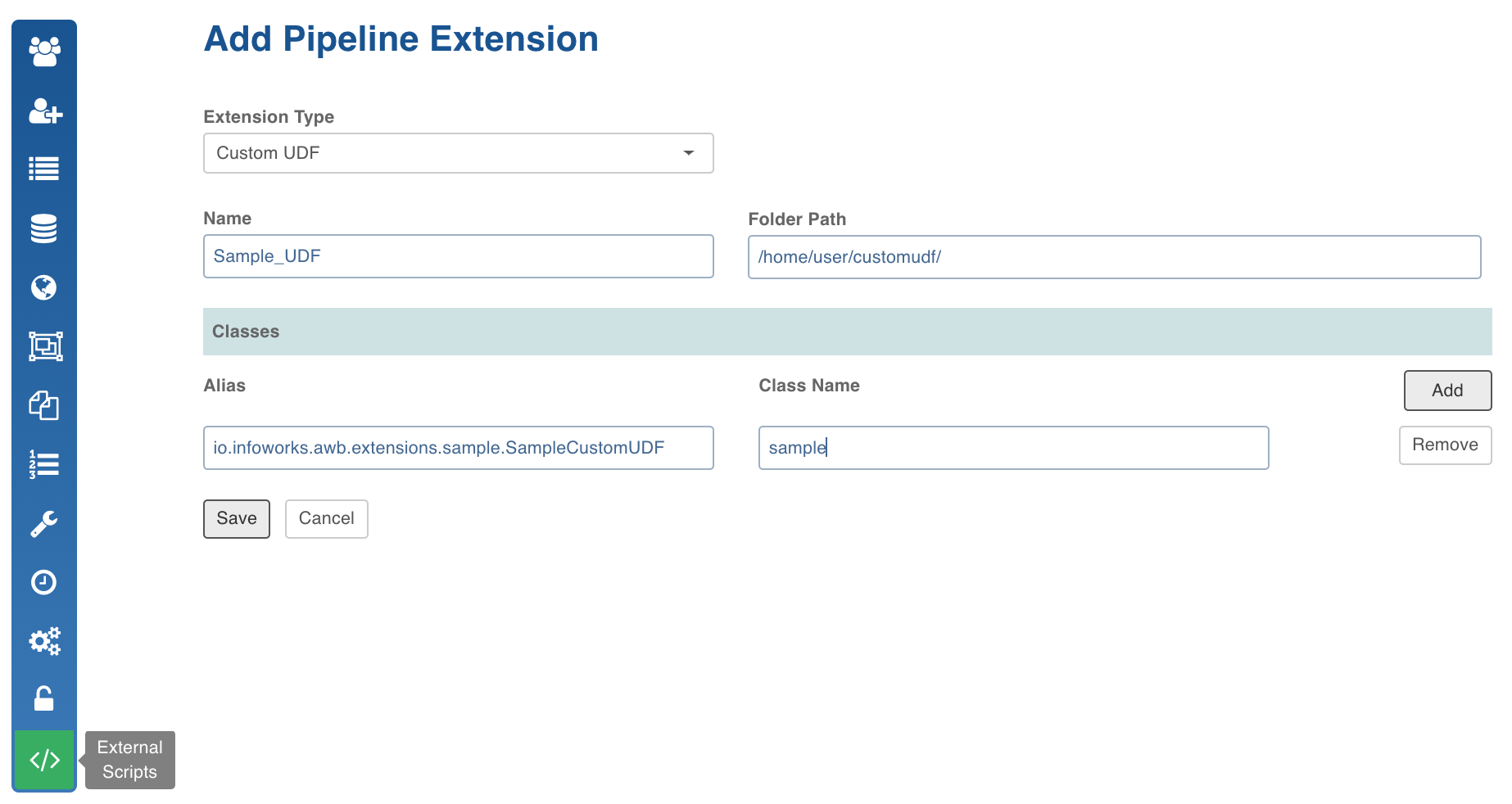
In the Add Pipeline Extension page, enter the following details:
Extension Type: Choose Custom UDF.
Extension Name: The name of the jar file. For example, SampleUDF.jar
Extension Path: The path to the folder where the jars have been uploaded. For example, /home//customudf/.
NOTE: A file with the specified Extension Name must be available in the Extension Path.
ClassName: A fully qualified class name. For example, io.infoworks.awb.extensions.sample.SampleCustomUDF.
Alias: A user-friendly alias name for the custom UDF. This will call the evaluate() method in the ClassName. For example, sample.
You can click Add to add multiple pairs of Alias and Class Names.
Click Save.
Adding Custom UDF to Domain
Navigate to Admin > Domains. Select the required domain.
Click the Manage Artifacts button for the required domain.
Click the Add Pipeline Extensions button in the Accessible****Pipeline Extensions section.
Select the Custom UDF to be made accessible in the domain.
Using Custom UDF
Navigate to the pipelines page and select the required pipeline.
Click on any node with a Derivations page.
In the Derivations page, click on Add Derivation.
In the Expression text box, use the Alias of the custom UDF along with any parameters.
Click Save.